AI Photo Enhancer and Remover
- 4.5
- Rating
- 10.00M
- Installs
- Free
- Price

 Analysis by App-foxy
I usually approach photo-enhancement apps with some caution. A tool that promises to sharpen faces, remove unwanted objects, or repair an old picture can be genuinely useful, but personal photos are also some of the most sensitive files on a phone. After spending time with AI Photo Enhancer and Remover, I see it as a practical personalization app for quick image repairs rather than a complete replacement for a professional editor. Its biggest appeal is that it brings several AI-assisted fixes into one straightforward workflow.
The app is free to install, carries an Everyone age rating, and comes from Prop studio. Its store presence is substantial, with over ten million installs and an average rating of 4.5 from around forty-three thousand ratings. Those figures suggest that the app has reached a broad audience, although popularity alone is not a reason to hand over every personal image without thinking. My recommendation is to judge it image by image: use it for ordinary snapshots and restoration experiments, but pause before processing anything highly private.
What the editing experience is really like
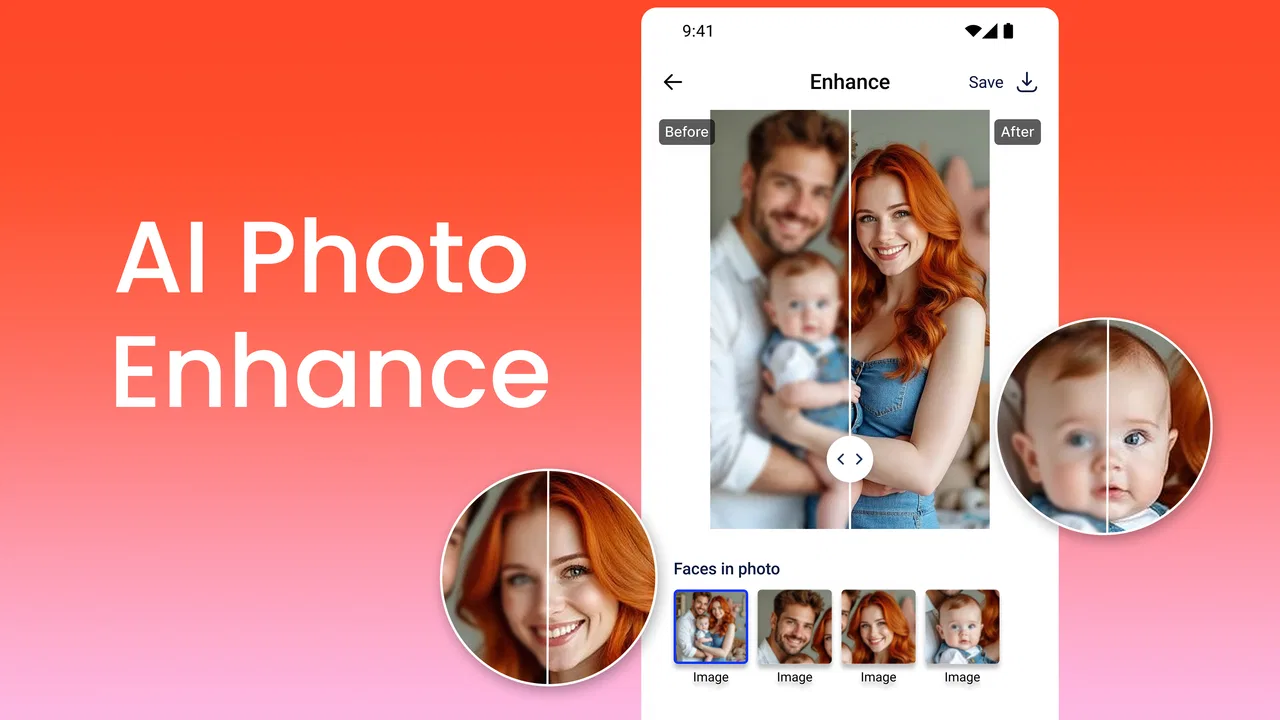
AI Photo Enhancer and Remover focuses on three jobs that people often want to complete quickly: making a soft image clearer, removing an unwanted object, and restoring an older photograph. That combination gives it a more useful identity than a basic filter app. I do not open it when I want to build a layered composition or make precise color corrections. I open it when a picture is almost good enough and needs a targeted rescue.
You May Also Like

 AccuWeather: Weather Radar
AccuWeather Review: A Quick, Clear Forecast for Everyday Decisions
For everyday plans, the best forecast is the one you can understand quickly. AccuWeather makes rain timing, radar, and local conditions easy to act on, with a few trade-offs.

 Hill Climb Racing
Why Hill Climb Racing Still Turns Crashes Into One More Run
A tiny car, a bumpy hill and one more upgrade: Hill Climb Racing keeps resurfacing because its simple chaos makes every near-miss feel personal.

 AliExpress - Shopping App
AliExpress Makes Global Shopping Feel Personal, but Shoppers Bear the Risk
AliExpress turns a global marketplace into a pocket-sized discovery engine. Its reach is useful, its shopping loop compelling, and its trade-offs easy to miss.

 Lords Mobile: Kingdom Wars
Lords Mobile Is a Kingdom-Building Routine, Not a Quick Match
A case-by-case verdict on the building, battles, device demands, and social commitments that make Lords Mobile rewarding for some players and exhausting for others.

 PDF Scanner app - TapScanner
TapScanner Makes Paperwork Easier to Capture, Check, and Share
TapScanner makes scanning with a phone feel less like a rescue operation and more like a dependable step in getting work done. Its capture tools are useful, though not flawless.

 Block Blast!
 Shows How Much a Puzzle Game Can Leave Out
A quiet grid game shows why puzzle players increasingly value instant clarity, repeatable skill and low-pressure play—and where the genre still needs to catch up.
More From Our News Desk
View All News


The first useful distinction is between enhancement and restoration. A recent photo with mild blur or low detail benefits from a restrained improvement, while a scanned family photograph may need several passes and still retain scratches, faded areas, or missing information. AI can estimate what should be present, but it cannot truly recover detail that was never captured. If a face is only a few indistinct pixels, the result may look cleaner without becoming historically accurate.
Object removal is similarly dependent on context. A small sign, cable, stain, or passerby against a simple background is a sensible target. A person crossing a busy street, a hand overlapping clothing, or an object touching a face is much harder. The app can produce a convincing patch in one area and an obviously artificial texture in another. I found that treating removal as a correction rather than magic leads to better expectations and better decisions about whether the finished image is worth keeping.
The most reliable workflow is selective, not automatic: choose one problem, inspect the result closely, and keep the original untouched. I would not process a photo repeatedly just because each pass appears to improve sharpness. Repeated enhancement can make skin look plastic, turn fine hair into painted strands, and create halos around high-contrast edges.
Where it fits in a normal day
A realistic use case is a family group photo taken indoors. The people are recognizable, but the room is dim and one unwanted item sits near the edge of the frame. I would first save the original, try the object-removal task separately, and then test enhancement on a copy. If the faces become too smooth, I would favor the less aggressive result even if it looks slightly softer. The goal is a believable memory, not a synthetic portrait.
Another useful situation is preparing an old printed photograph for sharing with relatives. The restoration function may make the image easier to view on a modern screen, especially when the source is faded or uneven. I would still compare the output with the scan and avoid treating altered facial details as factual. For family archives, keeping both versions is important: one preserves the source, while the other is a convenient viewing copy.
For social posts, the app is most helpful when a small distraction competes with the subject. Removing a bin from a landscape or a stray mark from a wall can make a photo feel finished without requiring desktop software. I would be more careful with images intended for journalism, legal records, historical documentation, or evidence. In those settings, removing or inventing visual information changes the meaning of the image, so a general-purpose AI editor is not the right choice.
Practical controls that matter more than flashy results
One of the first things I look for in an image app is whether I can make a deliberate choice before editing. The useful controls here are not only the visible AI actions but also the habits around them: select the correct source, avoid editing the only copy, inspect the entire frame after processing, and decide whether the generated texture is acceptable. These steps sound basic, yet they prevent the most common disappointment with automated editing.
I recommend zooming into three areas after an edit: the main subject, the boundary where the removed object used to be, and a distant background with repeated patterns. AI retouching can look excellent at normal thumbnail size while revealing warped lines, repeated textures, or strange edges when enlarged. A result that survives this inspection is much more useful than one that merely looks impressive in the preview.
For portraits, compare eyes, teeth, hair, and skin texture. Enhancement systems often prioritize recognizable facial structure, but that can produce a face that feels cleaner and less like the person in the original. For architecture, inspect straight lines and text. For old photos, check clothing patterns and facial features before sharing the restored version with relatives. This is a concrete reason to use the app as a helper rather than an unquestioned authority.
The app runs on Android versions beginning with Android 7.0, which makes it accessible to people using older compatible phones as well as newer devices. The current version is 2.6.8. In practical terms, the editing experience can still depend on the phone’s screen, memory, storage, and processing speed. I would avoid judging the app from a single slow operation on an older handset, but I would also leave room for processing time when working through several photos.
Free access, paid choices, and what to check before committing
AI Photo Enhancer and Remover is free to download, with in-app purchases ranging from $0.99 to $49.99 per item. That wide range is worth noticing before starting a large restoration project. A person who only wants to repair one casual snapshot may have a very different experience from someone planning to process an entire archive. I would check the visible purchase prompt carefully and avoid assuming that every editing action belongs to the free experience.
My advice is to test the app with a low-stakes image first. Confirm what the free path allows, whether the result can be saved in a useful form, and whether a purchase is presented before you begin a task you care about. This is not a criticism of offering paid options; AI processing can involve real costs. It is simply a reminder that “free” describes installation, not necessarily unlimited access to every tool.
I would also avoid uploading a whole camera folder just to see what the app can do. Select individual images and review the choices shown on screen. If the app presents an account, subscription, permission, or sharing decision, read it rather than tapping through automatically. The safest workflow is the one where I know which image I selected, what operation I requested, and what I am agreeing to at each step.
Trust depends on visible choices, not assumptions
Because this app works with photographs, trust is more important than a polished before-and-after preview. I pay attention to the permissions Android displays, the photo-picker route offered by the app, and any request that seems broader than the task requires. If I only want to edit one picture, selecting one picture is preferable to granting access to an entire library when the system gives me that choice.
I also look for clear account controls and understandable explanations of what happens when an image is processed. I do not assume that an app is private merely because it has a familiar interface, and I do not assume the opposite without evidence. The responsible approach is to use the controls that are visibly available, read the privacy and purchase screens, and keep especially sensitive images out of the workflow unless I am comfortable with the stated handling.
That matters for photographs containing children, identity documents, medical information, private conversations, or recognizable locations around someone’s home. Even when the editing itself is harmless, the image may reveal more than intended. For those cases, I would choose a tool whose local-processing behavior and data practices are clearly explained to me, or use an offline editor that does not require sending the image away. AI Photo Enhancer and Remover is not automatically the best choice simply because it is convenient.
A smaller but important trust habit is checking the output before sharing it. An edited image can contain visual changes that are not obvious in a messaging-app thumbnail. If I remove a person from a vacation photo, I should make sure the result does not accidentally alter another person’s body or the surrounding scene. If I restore an old portrait, I should label it mentally, and sometimes visibly, as an enhanced version rather than presenting every generated detail as original evidence.
Who will enjoy it, and who should skip it?
I think the app is a good match for someone who wants quick help with imperfect personal photos and does not want to learn a full desktop editor. It suits casual photographers, families digitizing old prints, and people who regularly notice small distractions in otherwise useful images. The focused set of AI tasks is easier to approach than a large professional interface filled with tools that may never be used.
It is less suitable for photographers who need exact control over masks, layers, color profiles, export settings, or non-destructive editing history. A dedicated photo editor is usually better when the image must match a particular print, brand style, or production workflow. A specialized restoration program may also be preferable for a large archive because it can offer more deliberate repair controls and a clearer record of changes.
I would skip this kind of app for sensitive documents and situations where accuracy matters more than appearance. Removing an object from a casual street photo is one thing; removing information from a contract scan or changing a detail in an image used to settle a dispute is another. The app’s strength is visual convenience, not evidentiary integrity.
How it compares with ordinary alternatives
Compared with a standard gallery editor, this app has a clear advantage when the desired fix involves guessing what should replace missing or unwanted content. Basic crop, brightness, contrast, and saturation tools are more predictable, but they cannot usually reconstruct a background after an object is removed. For simple exposure corrections, I would still start with the phone’s built-in editor because it is familiar, fast, and less likely to alter the image’s underlying appearance.
Compared with a full professional editor, AI Photo Enhancer and Remover is quicker to learn and less intimidating. The trade-off is control. A professional tool lets me decide exactly where an adjustment applies and revise individual steps. Here, the appeal is getting a plausible result with less manual work, while the risk is accepting a result I have not inspected carefully enough.
Compared with a dedicated old-photo restoration service, the app is more convenient for experimenting on a few images. A specialist service may be a better choice when the photograph has severe damage, when color accuracy is important, or when the family history attached to the image deserves careful human judgment. I would use this app for a first pass and a shareable preview, not necessarily as the final authority on an irreplaceable original.
My final recommendation after weighing convenience and control
After using it as a focused photo fixer, I find AI Photo Enhancer and Remover easy to recommend for low-risk, everyday editing. It brings enhancement, object removal, and old-photo restoration together without asking a casual user to master a complicated editing system. The free entry point, Everyone rating, broad Android compatibility, and strong public reception make it approachable for many people.
My recommendation comes with a clear condition: treat every AI result as an interpretation. Save the original, process selected images rather than an entire library, inspect faces and edges at full size, and read every visible permission or purchase choice. Those habits matter more than chasing the strongest-looking transformation.
Prop studio’s app is at its best when a good photo needs a quick, believable rescue. It is not the right tool for precise professional retouching, sensitive records, or edits where the original truth must remain untouched. For everyone else, I would install it, test it on an ordinary picture, and decide from the results whether its convenience justifies the paid options that appear for more demanding use. Use it as a careful assistant, not as a substitute for your own judgment.
FAQs for AI Photo Enhancer and Remover
01What features does AI Photo Enhancer and Remover offer?
AI Photo Enhancer and Remover provides powerful tools to enhance your photos by adjusting brightness, contrast, and sharpness. It also offers features to remove unwanted objects or backgrounds seamlessly using AI technology. The app supports batch processing, allowing you to enhance multiple photos at once, saving time and effort.
02Is AI Photo Enhancer and Remover user-friendly for beginners?
Yes, the app is designed with an intuitive interface that is easy to navigate, making it accessible for beginners. It provides tutorials and tips to guide users through the enhancement and removal processes. Even those with little to no experience in photo editing can achieve professional-looking results with minimal effort.
03Does the app support high-resolution images?
AI Photo Enhancer and Remover supports high-resolution images, ensuring that the quality of your photos is maintained throughout the editing process. The app utilizes advanced algorithms to enhance and remove elements without compromising the original resolution, making it suitable for photographers and casual users alike.
04Can AI Photo Enhancer and Remover be used offline?
While the app requires an internet connection for initial download and updates, many of its features are available offline. This allows users to edit photos without needing constant internet access, making it convenient for on-the-go editing. However, some advanced AI features may require a connection to function optimally.
05Is there a cost associated with using AI Photo Enhancer and Remover?
AI Photo Enhancer and Remover offers a free version with basic features, but there are in-app purchases and subscription options for advanced capabilities. These premium features include enhanced AI tools, ad-free experience, and additional editing options. Users can choose the plan that best fits their needs and budget.
Pros
- Impressive enhancement quality.
- Intuitive and user-friendly interface.
- Fast processing time.
- Supports multiple image formats.
- No watermark on exports.
Cons
- Limited free version features.
- Requires internet for full functionality.
- Occasional in-app ads.
- Subscription can be pricey.
- High memory usage on older devices.

AI Photo Enhancer and Remover
Gallery